

Eraser_arcade
-
Posts
104 -
Joined
-
Last visited
-
Days Won
12
Content Type
Forums
Events
Downloads
Store
Everything posted by Eraser_arcade
-
Version 1.0.1
48 downloads
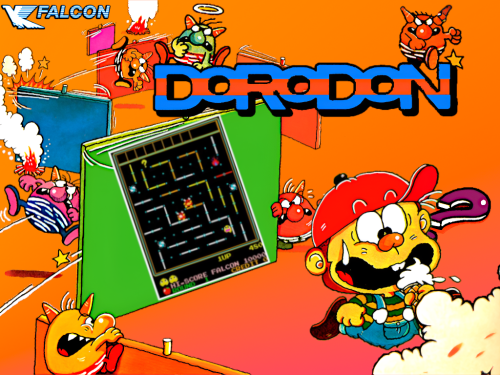
I'm back with another theme: Dorodon -dorodon (Mame) 4:3 It has been awhile since the last time I worked on a theme. I'm just happy to see that the Download Files section is back, & seems to be in working order. :) -
Version 1.0.0
201 downloads
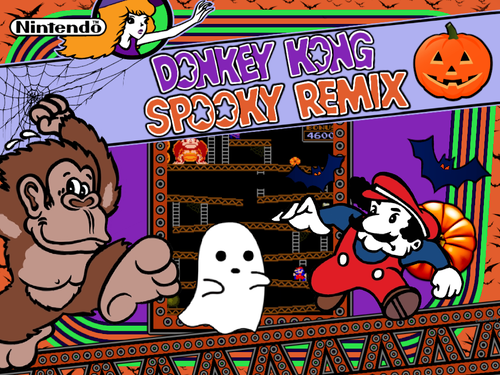
Donkey Kong Spooky Remix -dkspkyrmx (HBMAME) 4:3 Also included: - Donkey Kong Spooky Remix Title Font for the Wheel - Donkey Kong Spooky Remix Video Snap - 16:9 Bezel Artwork with a No Blood Alternative -

Version 1.0.0
175 downloads
Donkey Kong Christmas Remix -dkchrmx (HBMAME) 4:3 Also included: - Donkey Kong Christmas Remix title font for the Wheel - 16:9 Bezel Artwork -
Version 1.0.0
110 downloads
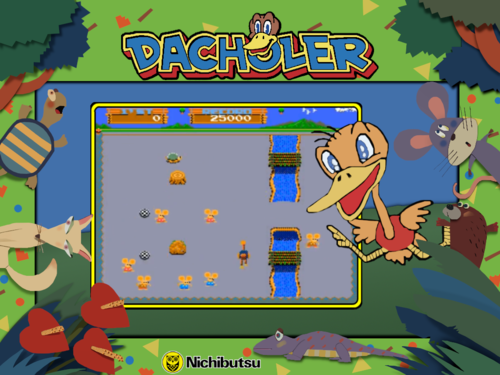
Dacholer -dacholer (Mame) 4:3 -
Version 1.0.0
108 downloads
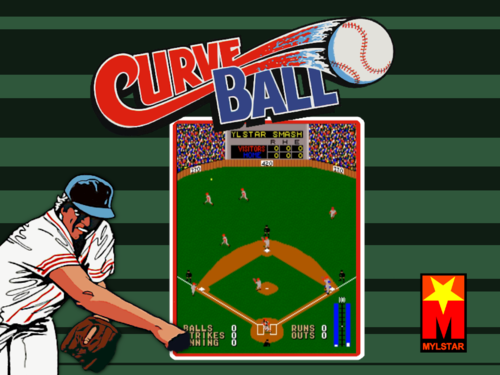
Curve Ball -curvebal (Mame) 4:3 -
Version 1.0.0
125 downloads
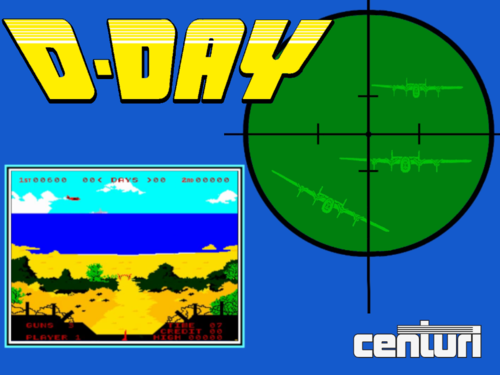
D-Day (Centuri) -ddayc (Mame) 4:3 'ddayc is a clone of dday' -

Version 1.0.0
206 downloads
Crossed Swords II -crswd2bl (Mame) 4:3 + Wheel Art -
Version 1.0.0
136 downloads
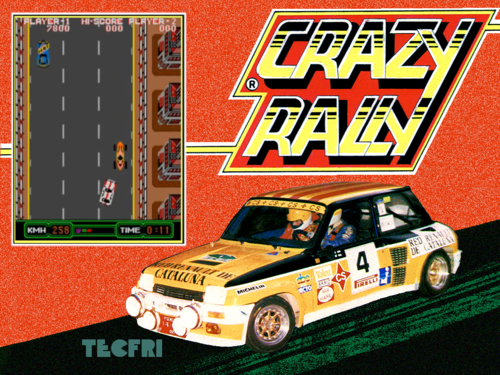
Crazy Rally -crzrally (Mame) 4:3 -
Version 1.0.0
136 downloads
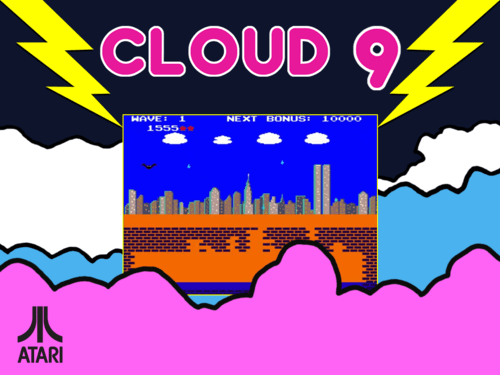
Cloud 9 -cloud9 (Mame) 4:3 -
Version 1.0.0
114 downloads
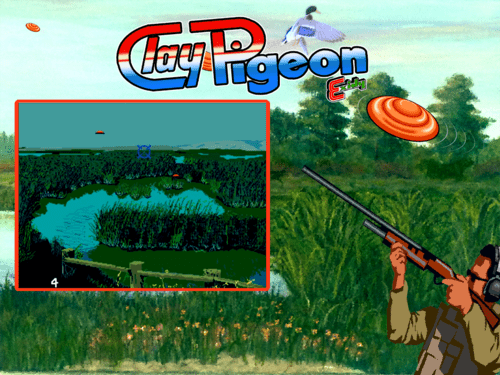
Clay Pigeon -claypign (Mame) 4:3 -
Version 1.0.0
107 downloads
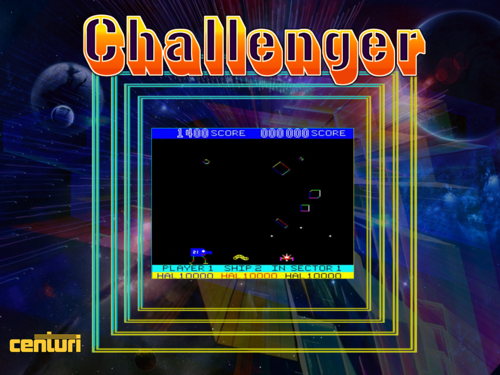
Challenger (MAME) (4:3) -
Version 1.0.0
115 downloads
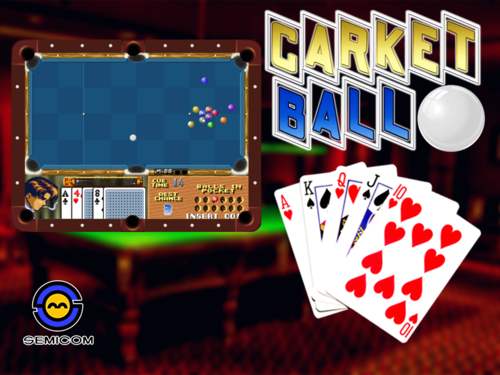
Carket Ball (MAME) (4:3) -
Version 1.0.0
116 downloads
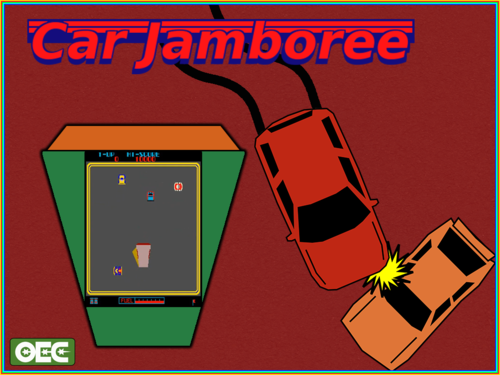
Car Jamboree (MAME) (4:3) -
Version 1.0.0
124 downloads
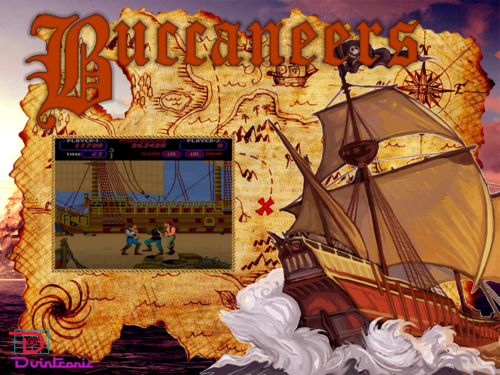
Buccaneers (MAME) (4:3) -
Version 1.0.0
100 downloads
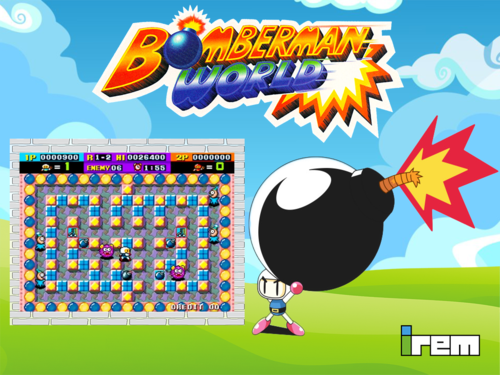
Bomber Man World (MAME) (4:3) -
I've been meaning to test out the Universal Screensaver on my arcade cabinet for awhile now. But I never had a chance, until recently. I ended up facing the same issue as you did (but with Mame), and decided to see if I could solve it with a AHK script. Well to make a long story short: After learning how to code with AHK (I only knew the basics at best) & many trial and error attempts, I was able to finally come up with a working script that fixes the issue. ScreensaverMonitor script: #Persistent DetectHiddenWindows, On SetTitleMatchMode, 2 sleep, 10000 setTimer, check return check: IfWinActive, ahk_exe HyperSpin.exe ifWinNotExist, Screensaver.exe run, C:\HyperSpin\Screensaver\screensaver.exe IfWinNotActive, ahk_exe HyperSpin.exe IfWinNotActive, ahk_exe vlc.exe { Process, Close, Screensaver.exe sleep, 5000 } return What the ScreensaverMonitor script does is this: Checks if HyperSpin is in focus & make sure that the Universal Screensaver is not running. If both are true, then it will run the Universal Screensaver. Which it will leave running until HyprSpin or VLC is no longer in focus. So lets say if you start up Mame (or some other program) through HyperSpin, well the ScreensaverMonitor script will quit the Screensaver.exe and won't start it back until HyperSpin is back in focus. Here is what I did, to get this script working correctly for my setup: First, if you haven't already, download the Universal Screensaver and extract it to C:\HyperSpin\Screensaver folder. (You will most likely have to create the Screensaver folder) Of course if you want to extract it to a different folder, then you will need to change the line in the above code to the location of your choice. You need to copy the code above and paste it into a text document. Then save the document as ScreensaverMonitor, and rename the txt extension to an ahk extension. Then right click the file and select compile script, to make an executable file. (If you don't have this option, then you may need to use a compiler, or reinstall AHK) Place the ScreensaverMonitor.exe into a location of your choice. (for me, I placed it in the Same folder where the Screensaver script is at) Now go into your HyperSpin folder>Settings and open the settings.ini file. This is where you have to change the Startup program executable. If you already have Screensaver.exe as the executable, then just change it to ScreensaverMonitor.exe. Also, don't forget to set the correct working directory. Now, if you have a different program as the Startup program, then you will need to create another AHK script. For this script, lets name it StartupPrograms. Following the same directions as above, by making a new text document, naming it, and changing the extension to ahk. Then write the code, and compile it to an executable file. In this Script, all you have to put in it is run commands for the programs you would like to start with HyperSpin. Example code of StartupPrograms: Run, "C:\HyperSpin\HyperSpin Startup script.exe" Run, "C:\HyperSpin\Screensaver\ScreensaverMonitor.exe" Now going back to the HyperSpin settings.ini file from earlier, change the Startup program executable to StartupPrograms.exe. Don't forget to set the correct working directory as well. Next you will need to edit in a couple of new lines in the Screensaver.ahk script, then recompile it. (overwriting the original executable). The new lines will have "; NEW LINE" beside them. #NoEnv #Persistent #SingleInstance ignore ; NEW LINE probably not needed, but added just in case SetTitleMatchMode, 2 SetTimer, CheckEingabe, 1000 ; Check every second IfExist, %A_ScriptDir%\Screensaver.ini { } else { IniWrite, Change me, %A_ScriptDir%\Screensaver.ini, Settings_Made_by_sedte, VLC_Path IniWrite, Change me, %A_ScriptDir%\Screensaver.ini, Settings_Made_by_sedte, Playlist_Path IniWrite, 9999, %A_ScriptDir%\Screensaver.ini, Settings_Made_by_sedte, Time_to_start IniWrite, --random --video-on-top --fullscreen --avi-index=2 --no-qt-name-in-title --no-qt-error-dialogs --no-video-title-show --disable-screensaver --no-keyboard-events --no-osd --quiet, %A_ScriptDir%\Screensaver.ini, Settings_Made_by_sedte, Prompts_for_VLC } IniRead, OutputVar, %A_ScriptDir%\Screensaver.ini, Settings_Made_by_sedte, VLC_Path VLC_Path = %OutputVar% IniRead, OutputVar, %A_ScriptDir%\Screensaver.ini, Settings_Made_by_sedte, Playlist_Path Playlist_Path = %OutputVar% IniRead, OutputVar, %A_ScriptDir%\Screensaver.ini, Settings_Made_by_sedte, Time_to_start Time_to_start := (OutputVar*1000) IniRead, OutputVar, %A_ScriptDir%\Screensaver.ini, Settings_Made_by_sedte, Prompts_for_VLC Prompts_for_VLC = %OutputVar% Return ; ------------------------------------------------------------------------------ CheckEingabe: If A_TimeIdle >= %Time_to_start% ; Start VLC after idle Time of XX sec { If ProcessExist("vlc.exe") { } else { MouseMove, 1920, 1080 ; NEW LINE change to resolution of your PC Run, "%VLC_Path%" file:///%Playlist_Path% %Prompts_for_VLC% Sleep, 2000 ; NEW LINE optional, for LEDBlinky Run, C:\LEDBlinky\LEDBlinky.exe audio.lwax Pattern05.lwax ; NEW LINE optional, for LEDBlinky } } If A_TimeIdlePhysical < 100 ; Stop VLC { If ProcessExist("vlc.exe") { Process, Close, vlc.exe run, C:\LEDBlinky\LEDBlinky.exe 11 ; NEW LINE optional, for LEDBlinky } else { } } Return ProcessExist(Name){ Process,Exist,%Name% return Errorlevel } Optional - Have LEDBlinky play an audio animation when the Screensaver script plays a VLC file: Must keep the optional new lines in the code above, but make sure to edit for your correct location of LEDBlinky. Example: if you have LEDBlinky installed in your HyperSpin folder on drive C, then change the line "C:\LEDBlinky\LEDBlinky.exe audio.lwax Pattern05.lwax" to "C:\HyperSpin\LEDBlinky\LEDBlinky.exe audio.lwax Pattern05.lwax". Also you can change the pattern animation (Pattern05.lwax) into whatever animation lwax file you prefer. Next you need to start up LEDBlinkyConfig and go to the Audio Animation tab > FE Start, and select an audio animation of your choice. (As far as I can tell, this has to be done for LEDBlinky to play Audio Animations during VLC) Now go to the FE options tab and chose the desired FE Start-up Ani duration. (I have mine setup for 1 sec) If you have no interest in having LEDBlinky play an audio animation during VLC (or don't even use LEDBlinky), then you must delete the new optional lines from the Screensaver script! And as for the new line "MouseMove, 1920, 1080" - Make sure to edit it for the correct resolution of your PC. What this does is move your mouse cursor to the bottom right of the screen. So that the cursor isn't visible during the load up of VLC. I believe that's everything. Hopefully I didn't forget anything, and that everything I wrote made sense. If anyone has any questions, I'll try to answer them the best as I can. Also if it all did worked out for you, let me know.
-
Version 1.0.0
228 downloads
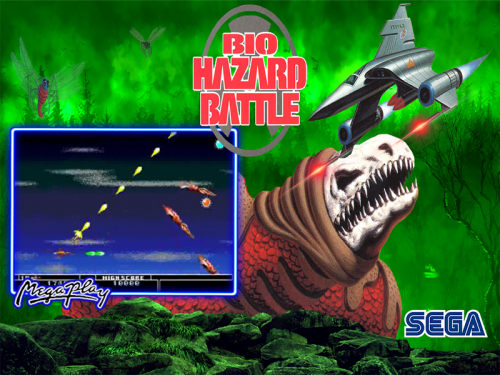
Bio Hazard Battle (Mega Play) - mp_bio (MAME) (4:3) -
Version 1.0.0
199 downloads
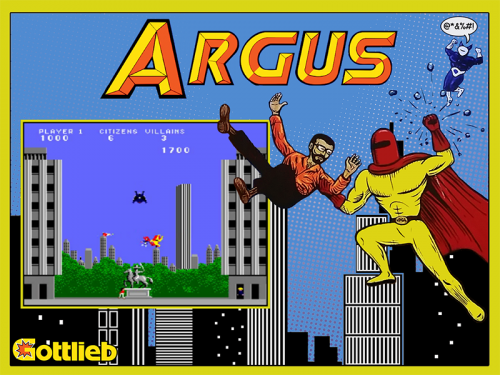
Argus (Gottlieb, prototype) (Mame) (4:3) -
Version 1.0.0
272 downloads
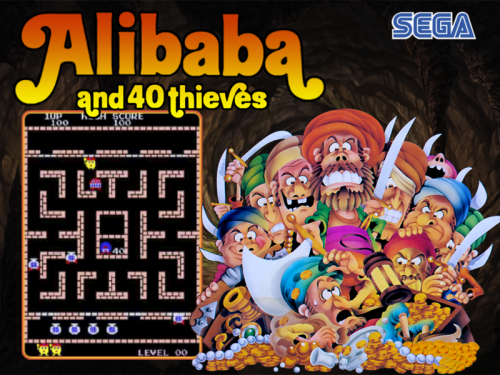
Alibaba and the 40 Thieves- 2 comments
-
- 15
-

-

-

-
Version 1.0.0
206 downloads
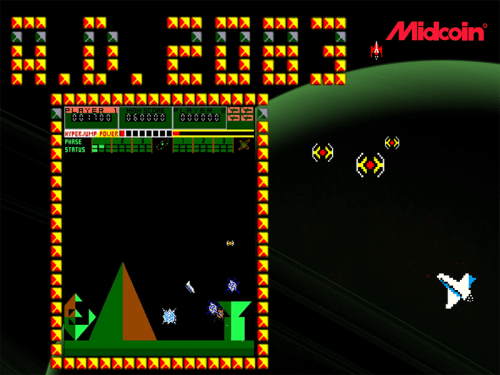
A.D. 2083 (Mame) -
A.D. 2083 View File A.D. 2083 (Mame) Submitter Eraser_arcade Submitted 04/13/2017 Category Themes (4:3) HyperBase Version Media Dimensions File Count Credits
-
Version 1.0.0
139 downloads
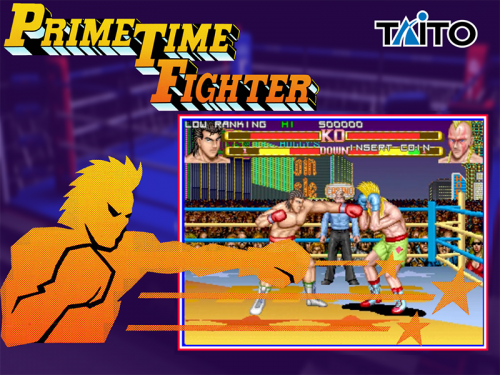
Prime Time Fighter (Ver 2.1A 1993/05/21) (New Version) - prmtmfgt (Mame) -
Prime Time Fighter (Ver 2.1A 1993/05/21) (New Version) View File Prime Time Fighter (Ver 2.1A 1993/05/21) (New Version) - prmtmfgt (Mame) Submitter Eraser_arcade Submitted 03/22/2017 Category Themes (4:3) HyperBase Version Media Dimensions File Count Credits
-